Essential Cybersecurity Tips for Remote Workers
Protect your data with crucial cybersecurity tips for remote work. Stay safe from online threats as a digital nomad.
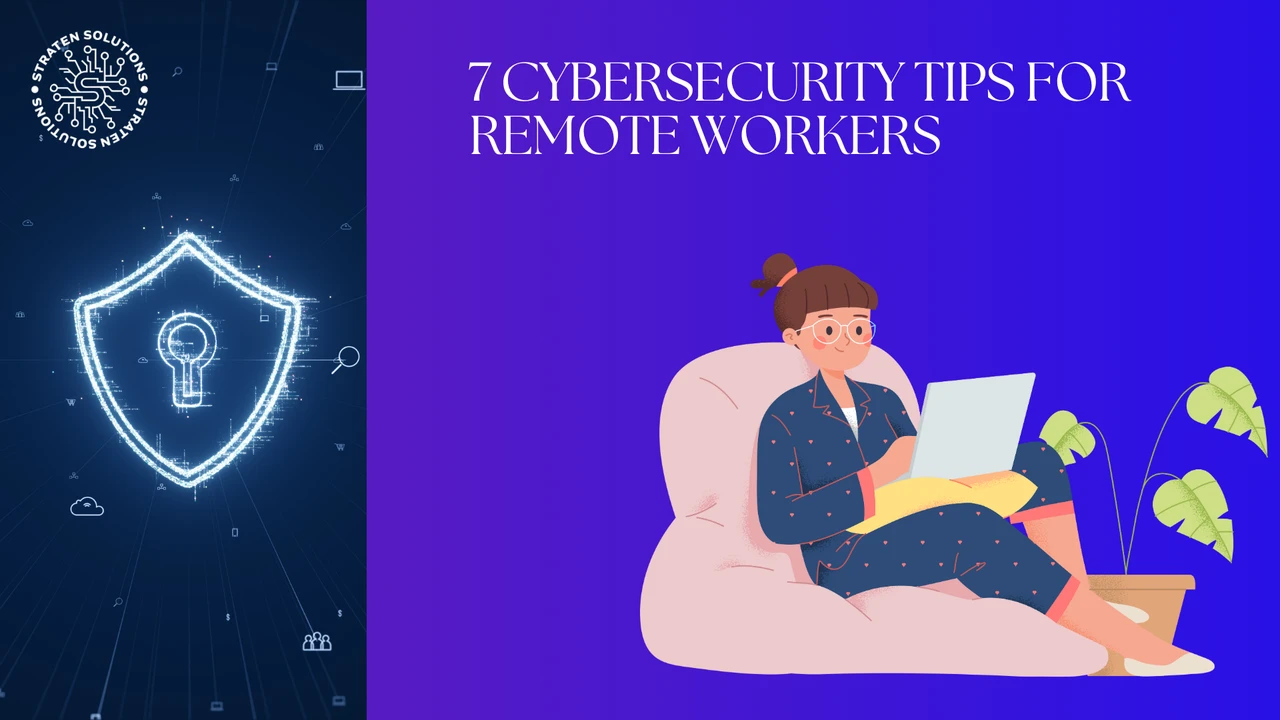
Protect your data with crucial cybersecurity tips for remote work. Stay safe from online threats as a digital nomad.
Essential Cybersecurity Tips for Remote Workers
Hey there, fellow remote worker or aspiring digital nomad! In today's interconnected world, working from anywhere offers incredible freedom, but it also comes with its own set of challenges, especially when it comes to keeping your digital life safe and sound. Think about it: you're probably connecting to various Wi-Fi networks, using different devices, and handling sensitive information from client data to your personal finances. Without the robust IT security infrastructure of a traditional office, you're often on your own. That's why understanding and implementing strong cybersecurity practices isn't just a good idea; it's absolutely essential. Let's dive into some crucial tips and tools to help you navigate the digital landscape securely, no matter where your adventures take you.
Understanding Remote Work Cybersecurity Risks and Threats
Before we get into solutions, it's important to know what we're up against. Remote work introduces several unique cybersecurity risks that you might not encounter in a corporate office environment. These include:
- Public Wi-Fi Vulnerabilities: Connecting to public Wi-Fi in cafes, airports, or co-working spaces is super convenient, but these networks are often unsecured, making it easy for cybercriminals to snoop on your data.
- Phishing and Social Engineering: Without the direct oversight of an IT department, remote workers can be more susceptible to sophisticated phishing emails or social engineering tactics designed to trick them into revealing sensitive information.
- Device Theft or Loss: Laptops, smartphones, and other devices are your lifeline as a remote worker. Losing one, or having it stolen, can expose a wealth of personal and professional data.
- Outdated Software: It's easy to put off updates, but outdated operating systems and applications often have unpatched vulnerabilities that hackers can exploit.
- Weak Passwords and Reused Credentials: Many people still use simple or reused passwords, which are low-hanging fruit for cyber attackers.
- Lack of Centralized Security: Unlike an office with firewalls and managed security systems, you're responsible for your own digital perimeter.
Recognizing these threats is the first step toward building a strong defense. Now, let's talk about how to protect yourself.
Virtual Private Networks VPN for Secure Remote Access
If you take away one thing from this article, let it be this: use a VPN, especially when connecting to public Wi-Fi. A Virtual Private Network (VPN) creates an encrypted tunnel between your device and the internet, scrambling your data and making it unreadable to anyone trying to intercept it. It also masks your IP address, making it harder for websites and snoopers to track your online activity.
Why a VPN is a Remote Worker's Best Friend
- Data Encryption: All your internet traffic is encrypted, protecting sensitive information like passwords, banking details, and work documents from prying eyes.
- IP Address Masking: Your real IP address is hidden, enhancing your privacy and making it seem like you're browsing from a different location.
- Bypassing Geo-restrictions: Access content and services that might be restricted in your current location.
- Secure Public Wi-Fi: Transforms unsecured public Wi-Fi into a safe environment for working and browsing.
Top VPN Services for Digital Nomads and Remote Professionals
Choosing the right VPN can be tricky, as there are many options out there. Here are a few highly recommended services that offer a good balance of security, speed, and features:
1. NordVPN
- Key Features: Strong encryption (AES-256), a strict no-logs policy, Double VPN for extra security, CyberSec feature to block ads and malware, over 5,000 servers in 60 countries, P2P support, and dedicated IP options.
- Use Cases: Excellent for general browsing, streaming, torrenting, and ensuring maximum security on public Wi-Fi. Its user-friendly interface makes it great for beginners.
- Pricing: Typically starts around $3-5 per month for longer plans (e.g., 2-year plan), with monthly plans being more expensive. They often have promotional deals.
- Comparison: Known for its robust security features and large server network. It's a solid all-rounder.
2. ExpressVPN
- Key Features: Industry-leading encryption, TrustedServer technology (RAM-only servers for enhanced privacy), a verified no-logs policy, high speeds, servers in 94 countries, MediaStreamer for smart TVs, and a kill switch.
- Use Cases: Ideal for those who prioritize speed and reliability, especially for streaming high-definition content or making frequent video calls. Great for travel due to its wide server spread.
- Pricing: Generally a bit pricier, starting around $6-8 per month for longer plans.
- Comparison: Often cited as one of the fastest VPNs, making it perfect for bandwidth-intensive tasks.
3. Surfshark
- Key Features: Unlimited simultaneous connections (great for multiple devices), CleanWeb (ad and malware blocker), Bypasser (split tunneling), MultiHop (double VPN), Camouflage Mode (obfuscation), and a no-logs policy.
- Use Cases: Fantastic for individuals or families with many devices, or for those who want a budget-friendly option without sacrificing too much on features.
- Pricing: Very competitive, often starting around $2-3 per month for longer plans.
- Comparison: Offers excellent value for money, especially with its unlimited device connections.
When choosing a VPN, consider factors like server locations, speed, logging policy, and the number of devices you can connect simultaneously. Most reputable VPNs offer a money-back guarantee, so you can try them out risk-free.
Strong Passwords and Multi Factor Authentication MFA
Let's be real: 'password123' isn't going to cut it. Weak passwords are one of the easiest ways for hackers to gain access to your accounts. Combine that with reusing passwords across multiple services, and you're setting yourself up for a major headache if one service gets breached.
Crafting Unbreakable Passwords
- Length is Key: Aim for at least 12-16 characters. The longer, the better.
- Mix It Up: Use a combination of uppercase and lowercase letters, numbers, and symbols.
- Avoid Personal Information: Don't use your name, birthdate, pet's name, or anything easily guessable.
- Unique for Each Account: Never reuse passwords. Ever.
Password Managers for Digital Nomads
Managing dozens of unique, complex passwords can feel impossible. That's where password managers come in. They securely store all your login credentials, generate strong passwords for you, and often auto-fill them on websites. You only need to remember one master password.
Recommended Password Managers
- LastPass: Offers a free tier with basic features and a premium version with advanced options like dark web monitoring. It's cloud-based, making it accessible from any device.
- 1Password: Known for its robust security and user-friendly interface. It stores more than just passwords, including secure notes, credit card details, and software licenses.
- Bitwarden: An open-source option that's highly praised for its security and affordability (it has a very generous free tier). Great for those who are privacy-conscious.
The Power of Multi-Factor Authentication MFA
Even with a strong password, there's always a chance it could be compromised. Multi-Factor Authentication (MFA), sometimes called Two-Factor Authentication (2FA), adds an extra layer of security by requiring a second form of verification beyond just your password. This could be a code sent to your phone, a fingerprint scan, or a prompt from an authenticator app.
How MFA Works and Why You Need It
When you log in, after entering your password, the service will ask for a second piece of information that only you should have. This means that even if a hacker gets your password, they still can't access your account without that second factor. Enable MFA on every single account that offers it – especially for email, banking, social media, and work-related platforms.
Popular MFA Methods
- Authenticator Apps: Apps like Google Authenticator, Authy, or Microsoft Authenticator generate time-sensitive codes. These are generally more secure than SMS codes because they don't rely on your phone number being secure.
- Hardware Security Keys: Devices like YubiKey provide the strongest form of MFA. You physically plug them into your device or tap them to authenticate.
- SMS Codes: While better than nothing, SMS codes can be vulnerable to SIM-swapping attacks, so use authenticator apps or hardware keys if available.
Keeping Your Devices and Software Updated
This might sound obvious, but it's one of the most overlooked cybersecurity practices. Software updates aren't just about new features; they often include critical security patches that fix vulnerabilities discovered by developers. Running outdated software is like leaving your front door unlocked.
Operating System Updates
Whether you're on Windows, macOS, Android, or iOS, make sure your operating system is always up to date. Enable automatic updates whenever possible, or at least check for them regularly. These updates often contain fixes for newly discovered security flaws that could otherwise be exploited by attackers.
Application and Browser Updates
The same goes for your applications and web browsers. Keep Chrome, Firefox, Edge, Safari, and all your other software (like Adobe products, Microsoft Office, etc.) updated. Many browsers update automatically, but it's good to double-check. Outdated browser versions can be a gateway for malware and phishing attacks.
Antivirus and Anti Malware Software
While a VPN protects your network traffic, antivirus and anti-malware software protect your device itself from malicious programs. Even if you're careful, malware can sometimes slip through. A good security suite can detect and remove threats before they cause damage.
Recommended Antivirus Solutions
- Bitdefender: Consistently ranks high in independent tests for its detection rates and low impact on system performance. Offers comprehensive protection.
- Kaspersky: Another top performer with excellent malware detection and a range of security features.
- Malwarebytes: While not a full antivirus, it's an excellent anti-malware tool that can run alongside your existing antivirus to catch threats that might slip past.
For macOS users, while Macs are generally considered more secure, they are not immune to malware. Tools like Malwarebytes for Mac or Intego Mac Internet Security X9 can provide added protection.
Secure Your Wi-Fi Connections and Networks
As a remote worker, you'll be connecting to various Wi-Fi networks. Not all of them are created equal in terms of security.
Public Wi-Fi Best Practices
- Always Use a VPN: We've covered this, but it bears repeating. It's your first line of defense.
- Avoid Sensitive Transactions: Try not to do online banking, shopping with credit cards, or access highly confidential work documents on public Wi-Fi, even with a VPN, if you can help it. Save these for a secure, private network.
- Verify Network Names: Make sure you're connecting to the legitimate Wi-Fi network (e.g., 'Starbucks_Guest' not 'FREE_STARBUCKS_WIFI'). Hackers often set up fake networks to trick users.
- Disable Auto-Connect: Turn off automatic Wi-Fi connection on your devices to prevent them from joining unknown networks without your permission.
- Use HTTPS: Always look for 'https://' in the website address bar, which indicates an encrypted connection. Most modern browsers will warn you if a site isn't secure.
Securing Your Home Network
If you have a home base, securing your personal Wi-Fi network is crucial:
- Change Default Router Credentials: The first thing you should do is change the default username and password for your router. These are often publicly known.
- Use WPA3 or WPA2 Encryption: Ensure your router is using WPA3 or at least WPA2 encryption for your Wi-Fi password. WEP and WPA are outdated and easily crackable.
- Create a Guest Network: If you have guests, provide them with access to a separate guest network. This keeps your main network and connected devices isolated.
- Keep Router Firmware Updated: Just like your OS, router firmware needs updates to patch security vulnerabilities.
Data Backup and Recovery Strategies
Imagine losing your laptop with all your work, photos, and important documents. It's a nightmare scenario, but one that's entirely preventable with a solid backup strategy. Data loss can occur due to device theft, hardware failure, accidental deletion, or a cyberattack.
The 3-2-1 Backup Rule
A good backup strategy follows the 3-2-1 rule:
- 3 Copies of Your Data: Your primary data and two backups.
- 2 Different Media Types: For example, one copy on your laptop, one on an external hard drive, and one in the cloud.
- 1 Offsite Copy: At least one backup should be stored in a different physical location (e.g., cloud storage).
Backup Solutions for Digital Nomads
1. Cloud Storage Services
Cloud storage is a digital nomad's best friend for offsite backups. It's accessible from anywhere with an internet connection.
- Google Drive / Google One: Generous free tier (15GB), integrates seamlessly with Google Workspace, and offers affordable paid plans.
- Dropbox: User-friendly interface, excellent for file sharing and collaboration, with various plans for individuals and teams.
- OneDrive: Microsoft's cloud storage, integrates well with Windows and Office 365.
- Backblaze: Specifically designed for automated, continuous backups of your entire computer. It's very affordable for unlimited storage.
2. External Hard Drives
For local backups, an external hard drive is a must. Look for portable, durable options.
- SanDisk Extreme Portable SSD: Fast, compact, and rugged, making it ideal for travel. Available in various capacities (e.g., 500GB, 1TB, 2TB).
- Samsung T7 Portable SSD: Another excellent portable SSD known for its speed and compact design.
- Western Digital My Passport: A traditional HDD option that offers larger capacities at a lower price point, though it's slower and more fragile than an SSD.
Usage Scenario: Use cloud storage for your most critical and frequently updated files, and an external hard drive for a full system backup or larger archives. Automate your backups as much as possible so you don't forget.
Device Security and Physical Protection
Cybersecurity isn't just about software; it's also about the physical security of your devices. A lost or stolen laptop is a major security breach waiting to happen.
Encrypt Your Devices
Full disk encryption (FDE) scrambles all the data on your hard drive, making it unreadable to anyone who doesn't have the decryption key (usually your login password). If your laptop is stolen, the thief won't be able to access your files.
- Windows: Use BitLocker (available on Pro and Enterprise editions).
- macOS: Use FileVault (built-in and easy to enable).
Enable Remote Wipe and Device Tracking
Most modern operating systems and mobile devices offer features to remotely locate, lock, or even wipe your device if it's lost or stolen. Make sure these are enabled:
- Find My (Apple devices): Locate, lock, or erase your iPhone, iPad, or Mac.
- Find My Device (Android devices): Similar functionality for Android phones and tablets.
- Find My Device (Windows): Helps locate and lock your Windows laptop.
Physical Security Measures
- Kensington Lock: Use a physical cable lock to secure your laptop to a table in co-working spaces or cafes.
- Be Mindful of Your Surroundings: Don't leave your devices unattended, even for a moment.
- Discreet Bags: Avoid flashy laptop bags that scream 'expensive electronics inside.'
Email Security and Phishing Awareness
Email is still one of the primary vectors for cyberattacks. Phishing attempts are becoming increasingly sophisticated, making it harder to distinguish legitimate emails from malicious ones.
Spotting Phishing Attempts
- Suspicious Sender: Check the sender's email address carefully. It might look legitimate but have a subtle typo (e.g., '[email protected]').
- Urgent or Threatening Language: Phishing emails often try to create a sense of urgency or fear to make you act without thinking.
- Generic Greetings: If an email from your 'bank' addresses you as 'Dear Customer' instead of your name, be suspicious.
- Bad Grammar and Spelling: While not always present, these are common red flags.
- Suspicious Links or Attachments: Hover over links to see the actual URL before clicking. Never open attachments from unknown senders.
- Requests for Personal Information: Legitimate organizations will rarely ask for sensitive information (passwords, credit card numbers) via email.
Email Security Best Practices
- Use a Strong, Unique Password: For your email account, this is non-negotiable.
- Enable MFA: Absolutely essential for your email. If your email is compromised, all your other accounts are at risk.
- Be Skeptical: Always question unexpected emails, especially those asking you to click links or download files.
- Report Phishing: Most email providers have a 'report phishing' option. Use it!
Regular Security Audits and Digital Hygiene
Cybersecurity isn't a one-time setup; it's an ongoing process. Regularly reviewing your security practices is crucial.
Conducting Personal Security Audits
- Review Account Permissions: Periodically check which apps and services have access to your social media, Google, or Microsoft accounts. Revoke access for anything you no longer use or don't recognize.
- Check Privacy Settings: Review the privacy settings on your social media accounts, browsers, and operating systems.
- Delete Old Accounts: If you have old online accounts you no longer use, consider deleting them to reduce your digital footprint and potential attack surface.
- Monitor for Data Breaches: Use services like Have I Been Pwned to check if your email addresses have been involved in known data breaches. If they have, change your passwords immediately.
Practicing Good Digital Hygiene
- Be Mindful of What You Share: Think twice before posting personal information, travel plans, or sensitive work details online.
- Use Ad Blockers: While not strictly a security tool, some ad blockers can prevent malicious ads (malvertising) from loading.
- Clear Browser Cache and Cookies: Regularly clearing these can help protect your privacy, though it might make some websites less convenient to use.
- Educate Yourself: Stay informed about the latest cybersecurity threats and best practices. The digital landscape is constantly evolving.
By implementing these cybersecurity tips, you're not just protecting your data; you're safeguarding your livelihood and peace of mind as a remote worker or digital nomad. It might seem like a lot to take in, but by taking small, consistent steps, you can build a robust defense against the ever-present threats in the digital world. Stay safe out there, and happy remote working!
:max_bytes(150000):strip_icc()/277019-baked-pork-chops-with-cream-of-mushroom-soup-DDMFS-beauty-4x3-BG-7505-5762b731cf30447d9cbbbbbf387beafa.jpg)